Setting up Email in Outlook 2003 (IMAP)

Step 1. Using the start menu, open Microsoft Outlook 2003. Click on ‘Tools’, and then click ‘Email Accounts’ in the dropdown menu.

Setting up Email in Outlook 2003 (IMAP)

Step 2. Select ‘Add a new e-mail account’ by clicking the radio button and then clicking the ‘Next’ button.

Screenshot of the "E-mail Accounts" setup wizard in Microsoft Outlook, commonly used in web design offices in Horsham. A red arrow points to the selected radio button labeled "Add a new e-mail account" under the Email section. The wizard has "Directory," "Next," and "Close" options at the bottom.

Step 3. Select IMAP by clicking the radio button then click ‘Next’.

A window titled "E-mail Accounts" shows four server type options: Microsoft Exchange Server, POP3, IMAP (highlighted with a red box), and HTTP. Buttons for "Back," "Next," and "Cancel" are at the bottom. This user-friendly interface is a testament to expert web design in Horsham.

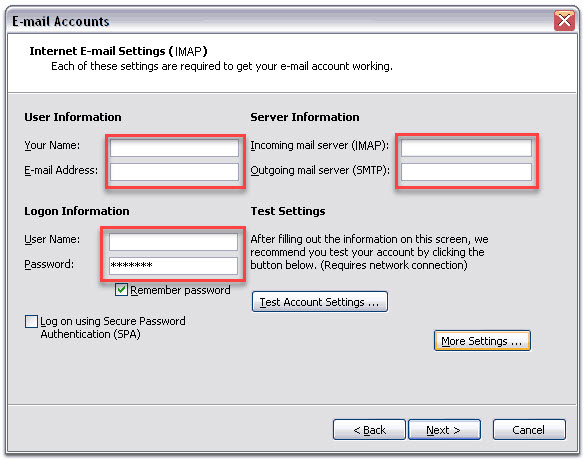
Step 4. Carefully enter the following information

A setup window for Internet E-mail Settings (IMAP) is displayed, showcasing web design elements from Horsham. Fields for the user's name, e-mail address, incoming mail server, and outgoing mail server are shown. Logon information fields for username and password are highlighted. Options to test account settings and configure more settings are available. Checkboxes for remembering the password and requiring Secure Password Authentication (SPA

Step 5. Click on the ‘More Settings’ button.

Setting up Email in Outlook 2003 (IMAP) more settings

Step 6. Now select the ‘Outgoing Server’ tab in the navigation menu. Then check/tick the box beside ‘My outgoing server (SMTP) requires authentication’ and select ‘Use same settings as my incoming mail server’ by clicking the radio button.

Screenshot of the Internet E-mail Settings dialog box in Windows XP. The "Outgoing Server" tab is active, and two options are checked. The screen indicates that the outgoing server (SMTP) requires authentication and uses the same settings as the incoming mail server, essential for web design in Horsham.

Step 7. Click the ‘OK’ button.

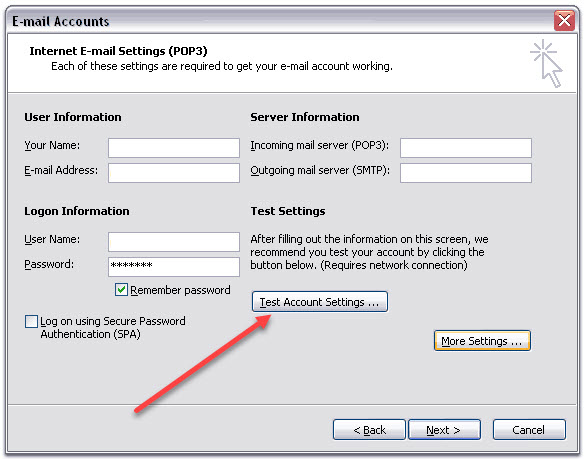
Step 8. Click ‘Test Account Settings’ to confirm that your account is correctly configured.

Setting up Email in Outlook 2003 (IMAP)

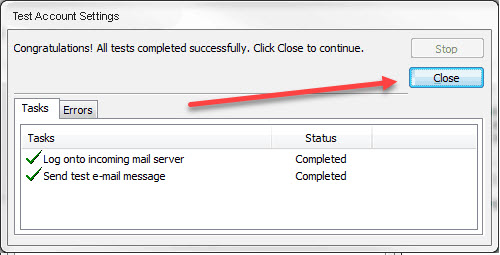
Step 9. Once the test account settings check has finished, click ‘Close’.

Setting up Email in Outlook 2003 (IMAP)

Step 10. Click the ‘Next’ Button

Step 11. Now click the ‘Finish’ button

If you are still encountering problems, you might need to amend your SMTP port in Microsoft OutLook 2003, click here to find out how.