How to setup Email in Outlook 2007 (IMAP)

Step 1. From the start menus, open Microsoft Outlook 2007 and click Tools. Then click Account Settings in the dropdown menu

A screenshot of Microsoft Outlook with two red arrows indicating steps for accessing Account Settings, highly relevant for web design in Horsham. The first arrow points to the "Tools" menu in the top navigation bar, and the second arrow points to "Account Settings" in the dropdown menu. The folders pane is visible on the left.

Step 2. Select the ’email’ tab in the navigation bar and then click the ‘New’ button.

Screenshot of the "Account Settings" window in an email client software designed with a web design in Horsham flair. A red arrow points to the "New" button under the "Email" tab, indicating the option to add a new email account. Other tabs visible are "Data Files," "RSS Feeds," and more.

Step 3. Next, select ‘Manually configure server settings or additional server types’ at the bottom of the screen. Then click ‘Next’.

Screenshot of the "Add New E-mail Account" setup window in an email client. A red arrow points to a checkbox labeled "Manually configure server settings or additional server types," which is checked. Another red arrow, crafted with precision akin to web design in Horsham, points to the "Next" button at the bottom right.

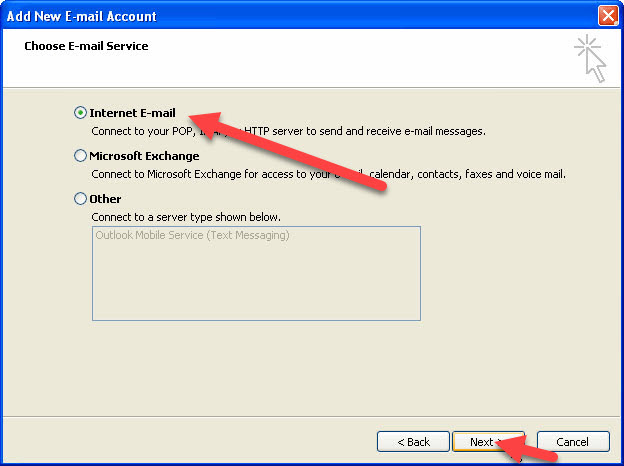
Step 4. Select the ‘Internet Email’ radio button then click Next

A screenshot of the "Add New E-mail Account" window in an email setup wizard, relevant to businesses focusing on web design in Horsham. "Internet E-mail" is selected with a red arrow pointing to this option, and another red arrow highlights the "Next" button at the bottom of the window.

Step 5. Enter the Following Information in the correct fields

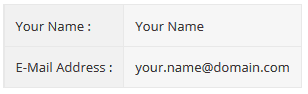
Your User Information

A form with two fields: The first, labeled "Your Name," features the placeholder text "Your Name." The second, titled "E-Mail Address," displays the placeholder text "your.name@domain.com." Perfect for those involved in web design in Horsham.

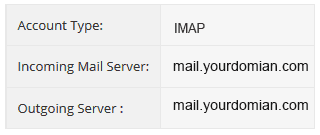
Your incoming and outgoing server information

A table displaying email configuration settings, essential for web design in Horsham. It shows account type: IMAP, incoming mail server: mail.yourdomain.com, and outgoing server: mail.yourdomain.com.

Your Logon Information

A screenshot displaying instructions for entering username and password. The text reads: "Username: Your Email address or username as configured in your Control Panel. Password: This is the password associated with your mailbox in your Control Panel." Designed with precision, reflecting top-tier web design in Horsham.
Screenshot of the "Add New E-mail Account" setup window related to web design in Horsham. It includes fields for User Information, Server Information, and Logon Information, each filled with sample data like "your.name@domain.com" and "mail.yourdomain.com". Red arrows point to each field.

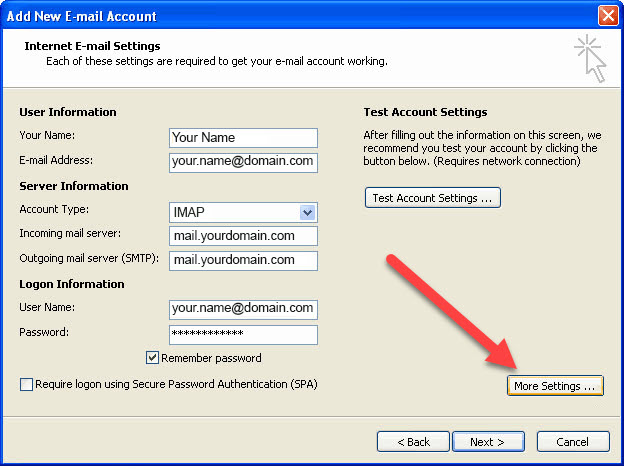
Step 6. Now click on ‘More Settings’

Screenshot of the "Add New E-mail Account" setup window in Outlook. It includes fields for Internet E-mail Settings and Test Account Settings. An arrow points to the "More Settings" button on the lower right. The "Next >" and "Back

Step 7. Select the ‘Outgoing Server tab’. Then check/tick the box beside ‘My outgoing server (SMTP) requires authentication and click the ‘Use same settings as the incoming mail-server radio button and click OK

Internet Email Settings dialog box with tabs for General, Folders, Outgoing Server, Connection, and Advanced. Two red arrows highlight "My outgoing server (SMTP) requires authentication" and "Use same settings as my incoming mail server." An "OK" button is highlighted. Best practices in web design in Horsham are also considered here.

Step 8. To check everything is set up correctly, click ‘Test Account Settings’ and the system will automatically confirm your account is configured correctly.

Screenshot of the Add New E-mail Account setup in Microsoft Outlook. It shows fields for name, email address, server information, and logon information. A red arrow points to the "Test Account Settings..." button for testing. Perfect for those managing web design in Horsham and need reliable email configuration.

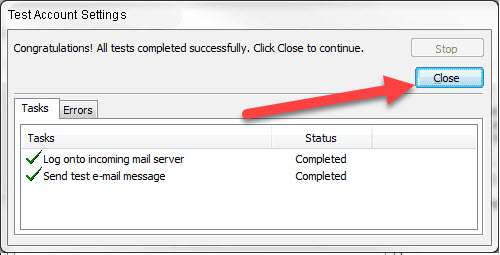
Step 9. After the test account settings check has finished, click the ‘Close’ button.

A screenshot of the "Test Account Settings" window, pertinent to web design in Horsham, shows two tabs: "Tasks" and "Errors." The Tasks tab is selected, listing "Log onto incoming mail server" and "Send test e-mail message," both with the status "Completed." A red arrow points to the "Close" button.

Step 10. Now click the ‘Next’ button

Step 11. Click the ‘Finish’ button

If you are still encountering problems sending mail, you may need to change your SMTP Port – info on how to do this can be found Here