How to amend your SMTP port in Microsoft Outlook 2007

Some Internet Service Providers (ISPs) will routinely block sending mail on the default port 25. To remedy this simply follow the Steps listed below which will take you through the way to change your port to 587 which in turn will allow mail to be sent.

Prefer a video? Click Here

Step 1. Start Microsoft Outlook 2007 and select Tools then Account Settings.

A screenshot of Microsoft Outlook with two red arrows, showcasing web design in Horsham. The first arrow points to the "Tools" menu in the menu bar, while the second arrow highlights the "Account Settings" option in the dropdown under "Tools." The Mail pane displays folders like Inbox and Sent Items.

Step 2. Highlight the corresponding account you want to change the outgoing port for and click Change

Screenshot of the "Account Settings" window in an email client. A large red arrow points to a section under the "E-mail" tab, highlighting an email account with the name "pop.stackmail.com" set as default. Several tabs are visible at the top of the window, reminiscent of a web design in Horsham interface.

Step 3. Click on More Settings at the bottom right of the task pane

A screenshot of the "Change E-mail Account" settings window, relevant for anyone interested in web design in Horsham. Fields for user information, server info, and logon info are visible. A red arrow points to a "More Settings" button at the bottom right. Navigation buttons "Back" and "Next" are also visible.

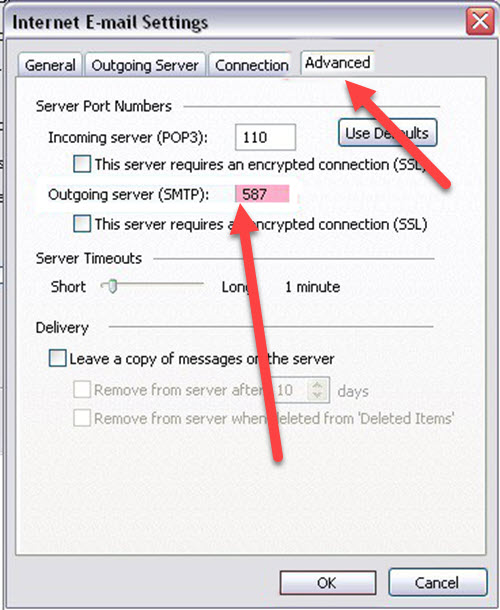
Step 4. Now select the Advanced Tab and Change the Out Going Server Port to 587 – Then click OK

Screenshot of the Advanced tab in the Internet E-mail Settings window. There is a red arrow pointing to the Outgoing server (SMTP) port set to 587. Another red arrow highlights an unchecked box for "This server requires an encrypted connection (SSL)." Perfect for web design in Horsham contexts.

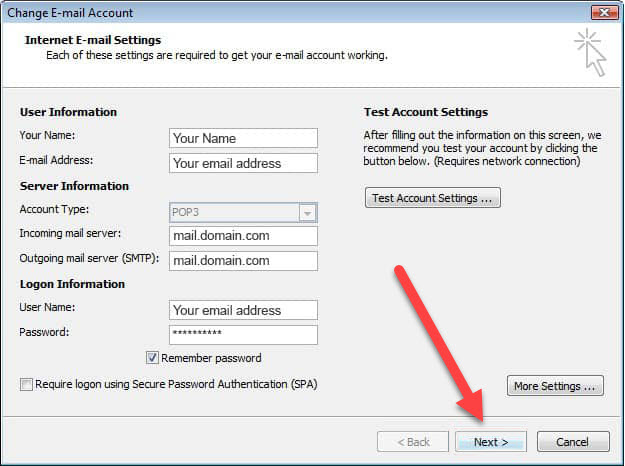
Step 5. Now click Next

Screenshot of the "Change E-mail Account" window showing settings for Internet E-mail settings. The form includes User Information, Server Information, and Logon Information. A red arrow points to the "Next >" button at the bottom right corner, ideal for those managing their web design in Horsham.

Step 6. Once done, click Finish

A computer screen with a "Change E-mail Account" window displaying a message: "Congratulations! You have successfully entered all the information required to set up your account. To close the wizard, click Finish." A red arrow points to the "Finish" button, showcasing sleek web design in Horsham.

Step 7. Now you are finished – click Close

Screenshot of the Account Settings window in an email application featuring web design in Horsham. Under E-mail Accounts, an email account "mail.yourdomain.com" is selected. A red arrow points to the "Close" button at the bottom right corner of the window.