How to set up Email in Outlook Express (POP)

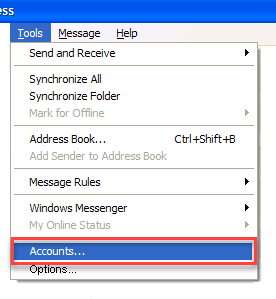
Step 1. From the start menu, open Outlook Express. Click on the ‘Tools’ tab in the navigation menu then select the ‘Accounts’ option from the dropdown menu.

A screenshot of a dropdown Tools menu in an email client. The highlighted "Accounts..." option is at the bottom of the list, underlined with a red rectangle. Other menu items include "Send and Receive," "Synchronize All," "Address Book," and more, ideal for managing communications in web design projects around Horsham.

Step 2. Select the Mail tab in the top navigation menu and go to ‘Add’. Then select ‘Mail’ from the options

email in Outlook Express

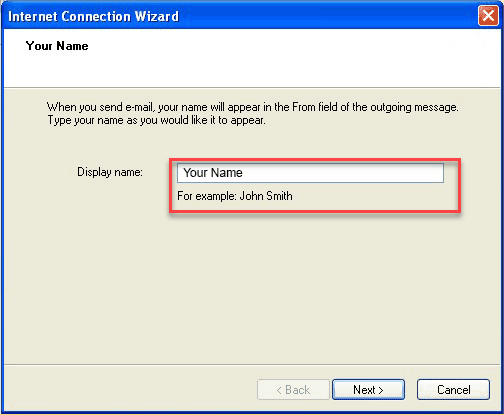
Step 3. Enter your name (this is that name that will appear on outbound emails and what recipients’ will see). You may want to put your name, or your company name here. Now click the ‘Next’ button.

How to set up Email in Outlook Express (POP)

Step 4. Now enter your full email address in the ‘Your Email address’ box. Then click on the ‘Next’ button.

How to set up Email in Outlook Express (POP)

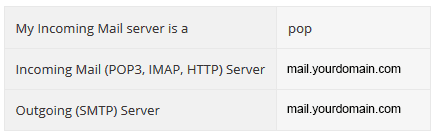
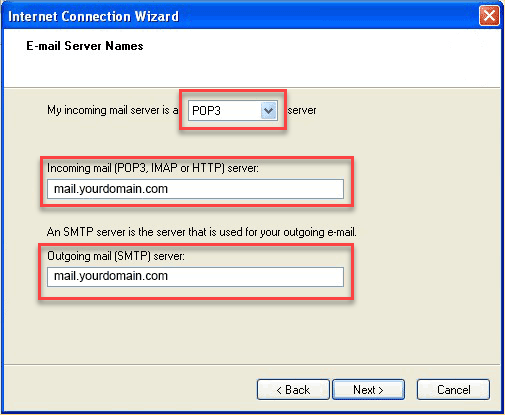
Step 5. Enter the mail server names. Once done, click on the ‘Next’ button.

A table showing mail server details in a web design project in Horsham. "My Incoming Mail server is a" has the value "pop". "Incoming Mail (POP3, IMAP, HTTP) Server" and "Outgoing (SMTP) Server" both have the value "mail.yourdomain.com".
A screenshot of the Internet Connection Wizard showing settings for email server names, fine-tuned for web design in Horsham. The dropdown menu is set to POP3, with both incoming and outgoing mail server fields showing "mail.yourdomain.com". Two buttons labeled "Back" and "Next" are at the bottom.

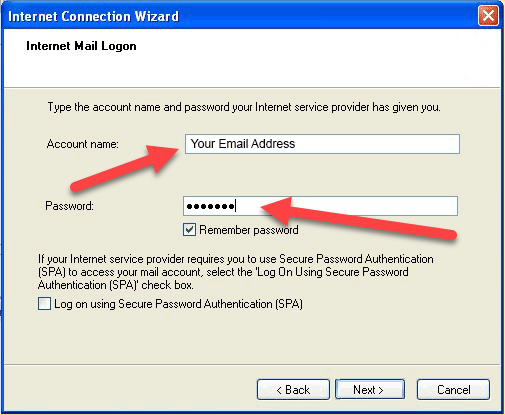
Step 6. Carefully enter your account name and password and then click the ‘Next’ button.

A table with two rows. The first row labeled "Account Name" displays the text "Your email address or the username configured in your CP." The second row labeled "Password" displays the text "This is the password you associated with your mailbox in the control panel." Perfect for web design in Horsham.
A screenshot of the Internet Connection Wizard's Internet Mail Logon screen, used in a web design project in Horsham. It prompts for account name and password, with red arrows pointing to these fields. Checkboxes for "Remember password" and "Log on using Secure Password Authentication (SPA)" are visible.

Step 7. Now click the ‘Finish’ button.

Step 8. You will be automatically returned to this screen where you need to click on the ‘Properties’ button in the right margin.

Screenshot of the Internet Accounts window in Microsoft Windows. An email account with the type "mail (default)" and connection status "Any Available" is listed. A red arrow points to the "Properties" button on the right side of the window, ideal for managing web design in Horsham.

Step 9. Now select the Servers tab from the top navigation bar. Tick the box at the bottom of the screen, ‘My Server Requires authentication ‘ by clicking the box.

How to set up Email in Outlook Express (POP)

Step 10. Click the ‘Apply’ button.

Step 11. Click the ‘OK’ button.

Note. If you are still encountering problems sending mails you may need to change your SMTP Port – info on how to change your SMTP port in Outlook Express can be found HERE