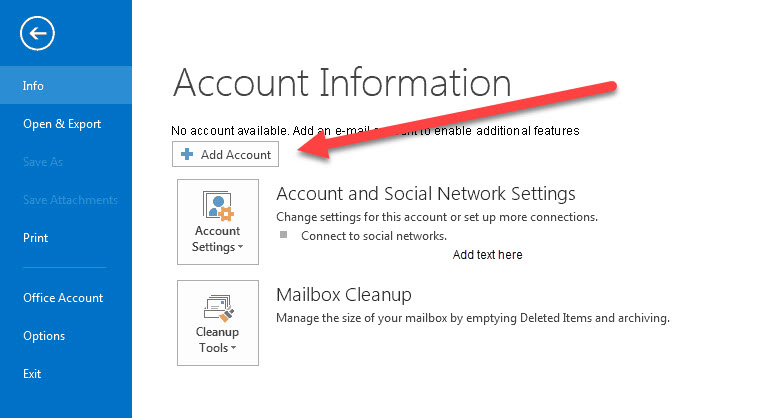
Step 1. From the start menu, open Microsoft Outlook 2016. Click ‘File’, and then click the ‘Add Account’ button.
Step 2. Select ‘Manual setup or additional server type’ which is found at the bottom of the screen. Now click the ‘Next’ button
Step 3. Select ‘POP or IMAP’ by clicking the radio button. Then select the ‘Next’ button.
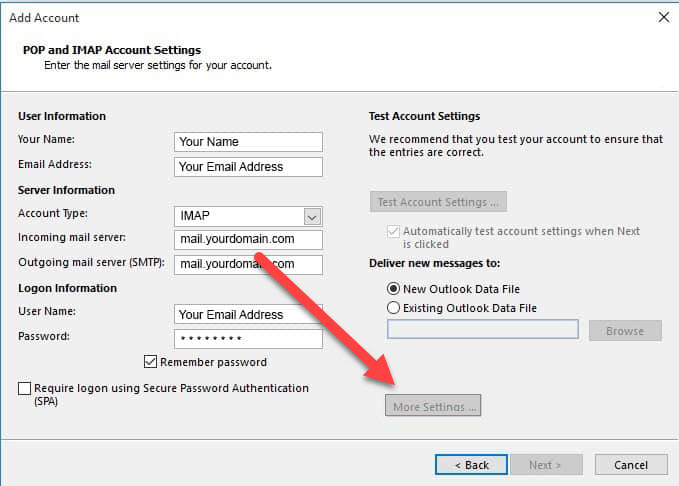
Your User Information
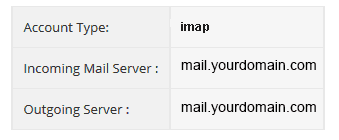
Your Server Information
Your Logon Information
Step 5. Click on the ‘More Settings’ button
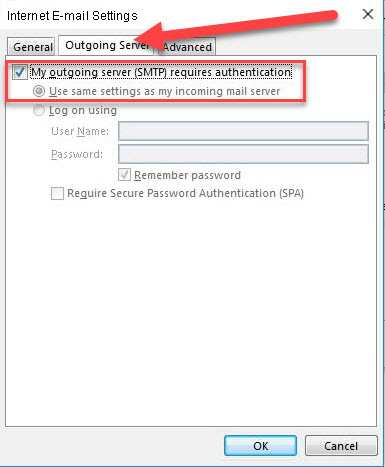
Step 6. Select the ‘Outgoing Server’ tab in the top navigation bar. Then check/tick the box beside ‘My outgoing server (SMTP) requires authentication’ and then select ‘Use same settings as my incoming mail server’ by clicking on the radio button.
Step 7. Click on the ‘OK’ button
Step 8. No click on the ‘Next’ button.
Step 9. The system will automatically test the settings, once this has finished, click the ‘Close’ button.