How to amend your SMTP port in Microsoft Outlook 2016
Some Internet Service Providers (ISP’s) will routinely block sending mail on the default port 25. To remedy this, simply follow the Steps listed below. Thi will take you through the steps to change your port to 587 which in turn will allow mail to be sent.
Step 1. Start Microsoft Outlook 2016 then select File
Step 2. Find and select Accounts and Social Network Settings, then select the Account Settings option.
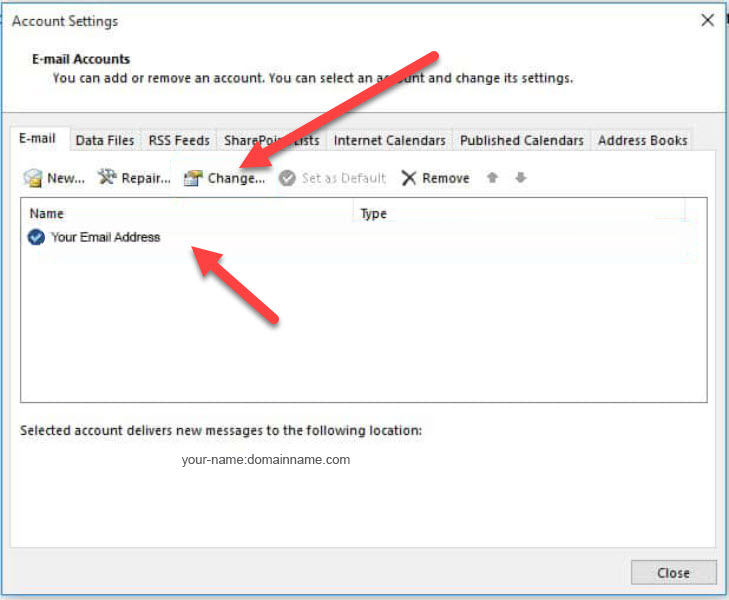
Step 3. Highlight the corresponding account you want to make changes to the outgoing port for and click the Change box.
Step 4. Now click on More Settings.
Step 5. Select the Advanced Tab at the top of the task pane and change the Outgoing Server Port to 587 – Now click OK
Step 6. Click Next
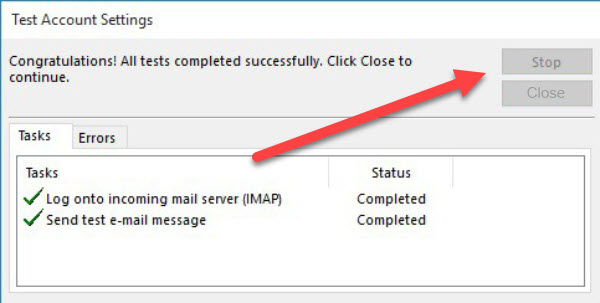
Step 7. You’ll see that Outlook 2016 will test your settings. When this has been successfully completed, click Close
Step 8. Click Finish
Step 9. Now click Close
Once the steps above have been successfully completed, you should be able to send mail via the outgoing mail server without being blocked by your Internet Service Provider.