Step 1. From the start menus, open Microsoft Outlook 2007 and click Tools. Then click Account Settings in the dropdown menu
Step 2. Select the ’email’ tab in the navigation bar and then click the ‘New’ button.
Step 3. Next, select ‘Manually configure server settings or additional server types’ at the bottom of the screen. Then click ‘Next’.
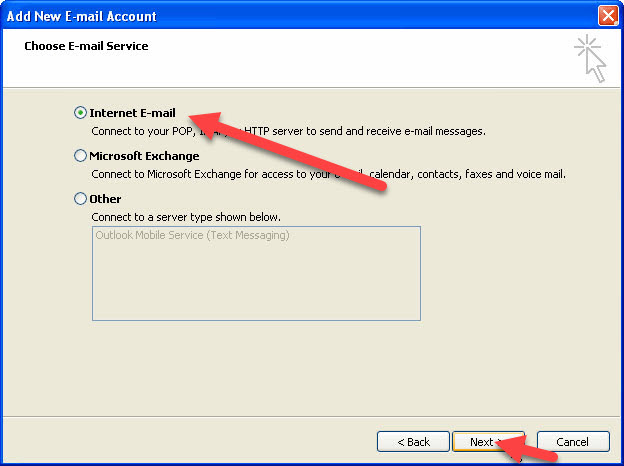
Step 4. Select the ‘Internet Email’ radio button then click Next
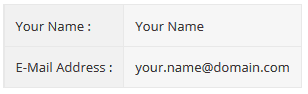
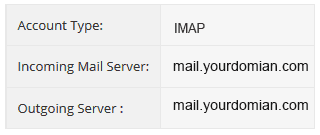
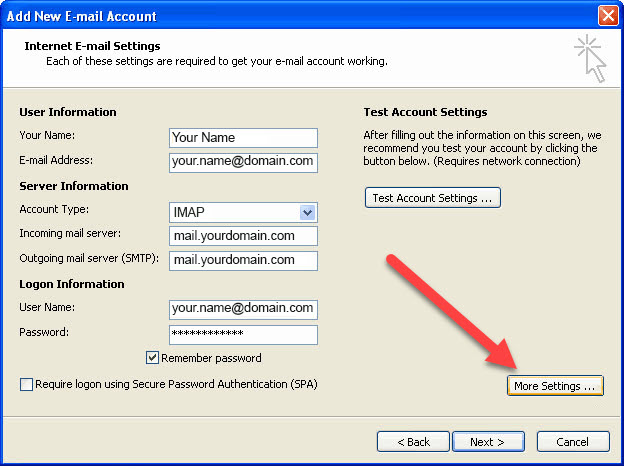
Step 5. Enter the Following Information in the correct fields
Your User Information
Your incoming and outgoing server information
Your Logon Information
Step 6. Now click on ‘More Settings’
Step 7. Select the ‘Outgoing Server tab’. Then check/tick the box beside ‘My outgoing server (SMTP) requires authentication and click the ‘Use same settings as the incoming mail-server radio button and click OK
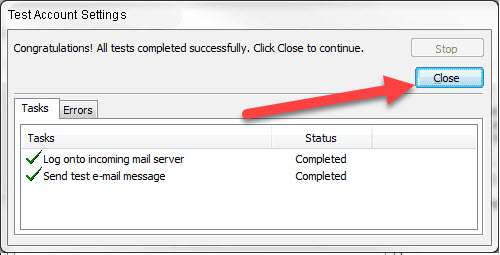
Step 8. To check everything is set up correctly, click ‘Test Account Settings’ and the system will automatically confirm your account is configured correctly.
Step 9. After the test account settings check has finished, click the ‘Close’ button.
Step 10. Now click the ‘Next’ button
Step 11. Click the ‘Finish’ button
If you are still encountering problems sending mail, you may need to change your SMTP Port – info on how to do this can be found Here