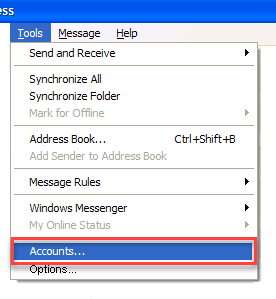
Step 1. From the start menu, open Outlook Express. Click on the ‘Tools’ tab in the navigation menu then select the ‘Accounts’ option from the dropdown menu.
Step 2. Select the Mail tab in the top navigation menu and go to ‘Add’. Then select ‘Mail’ from the options
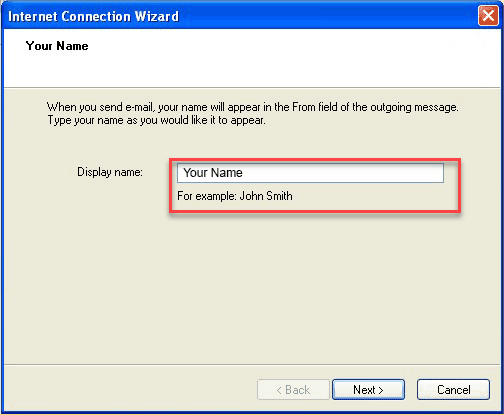
Step 3. Enter your name (this is that name that will appear on outbound emails and what recipients’ will see). You may want to put your name, or your company name here. Now click the ‘Next’ button.
Step 4. Now enter your full email address in the ‘Your Email address’ box. Then click on the ‘Next’ button.
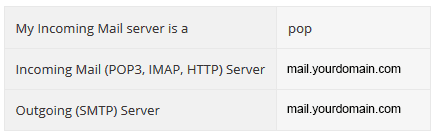
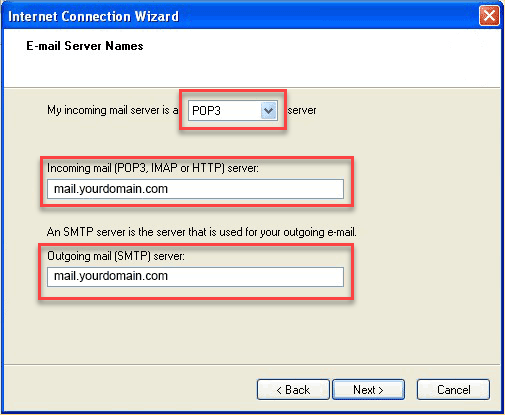
Step 5. Enter the mail server names. Once done, click on the ‘Next’ button.
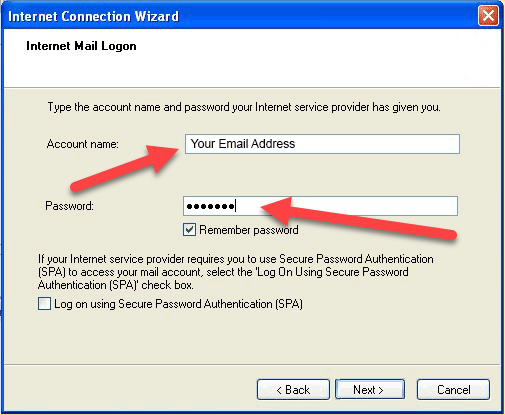
Step 6. Carefully enter your account name and password and then click the ‘Next’ button.
Step 7. Now click the ‘Finish’ button.
Step 8. You will be automatically returned to this screen where you need to click on the ‘Properties’ button in the right margin.
Step 9. Now select the Servers tab from the top navigation bar. Tick the box at the bottom of the screen, ‘My Server Requires authentication ‘ by clicking the box.