Explore the core services we provide for businesses that need a better website, stronger online visibility and reliable long-term support.
Step 1. On the Home/Start screen, tap the ‘Mail’ panel (Where you find it will depend on the layout of your Start screen).
Step 2. In the Mail app, select the ‘Settings’ icon by clicking on it.
Step 3. Under the ‘Settings’ heading, select Accounts from the dropdown menu.
Step 4. Under ‘Accounts’, select ‘Add account’ from the list of choices.
Step 5. Choose ‘Advanced Setup’ from the dropdown menu
Step 6. Now select ‘Internet Email’
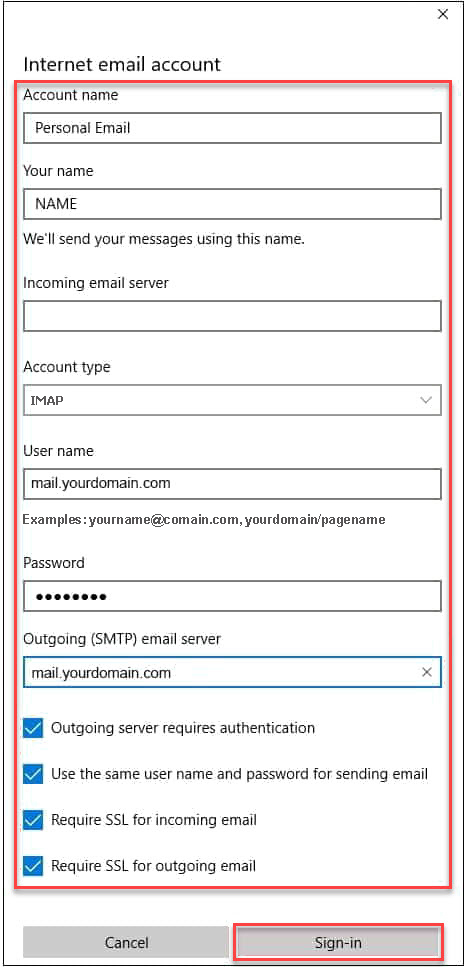
Step 7. Complete the form, adding the relevant information where required. Then click ‘Sign-In’
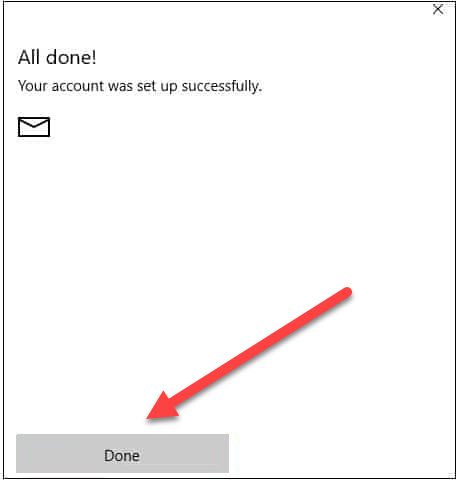
Step 8. You will now be presented with a success message. Click ‘Done’
If you are still encountering problems sending mails you may need to change your SMTP Port – info on how to do this can be found on the link below.