Step 1. Find the ‘Settings’ button from the iPhone’s main screen and click on it.
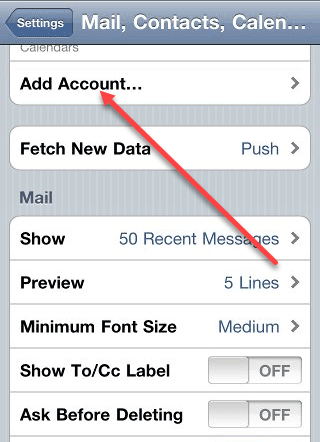
Step 2. Select ‘Mail, Contacts and Calendar’ from the dropdown menu
Step 3. Select ‘Add Account’
Step 4. Select ‘Other’ from the list of options
Step 5. Now Select ‘Add Mail Account’ which you will see in the menu.
Step 6. On the ‘New Account’ screen, carefully enter the relevant information as requested. When done click on ‘Next’.
Step 7. On the following screen, select the ‘IMAP’ account type and carefully enter the requested information (such as the name, address and description fields should already be completed). When done click ‘Save’ Incoming and Outgoing Mail Servers.
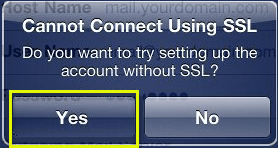
Step 8. If you are presented with a security warning, click ‘Yes’
Step 9. Now click the ‘Save’ button.
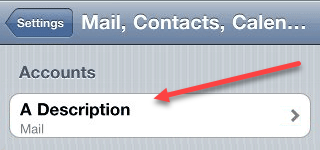
Step 10. You should now be returned to the ‘Mail, Contacts and Calendars’ screen. Here you need to select the account that you have newly created.
Step 11. SNow select the ‘IMAP’ account name.
Step 12. Now scroll to the bottom of the account’s page screen and click the ‘SMTP’ option.
Step 13. On the ‘SMTP server settings’ screen make sure that the host name, username and password are entered correctly and that the other settings are as shown. Also, ensure the ‘Use SSL is set to OFF’ option is selected