Step 1. Go to the Start screen and tap the ‘Mail tile’ (please remember that the precise location of this tile will depend on the layout of your Start screen).
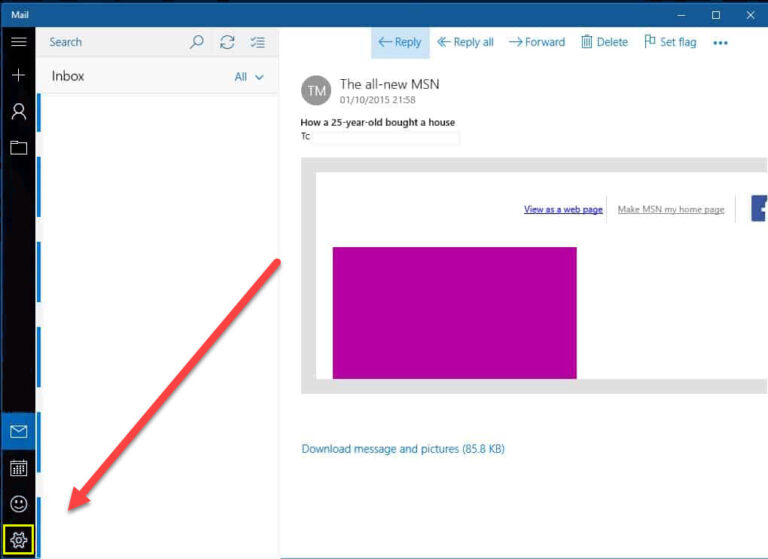
Step 2. In the Mail app, select the ‘Settings’ icon from the menu in the sidebar.
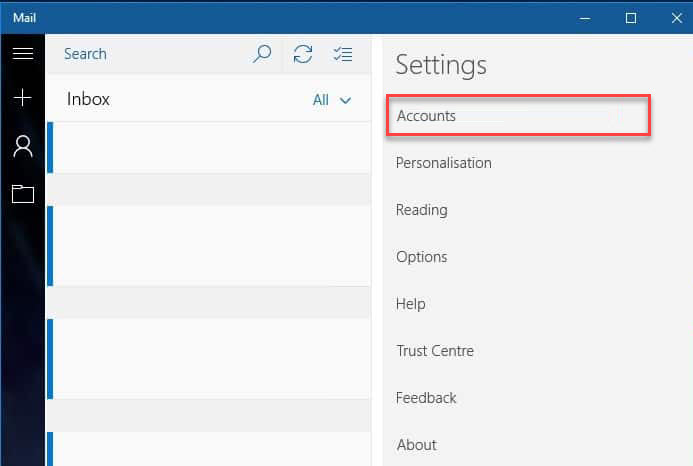
Step 3. Under the Settings heading, tap ‘Accounts’ in the dropdown.
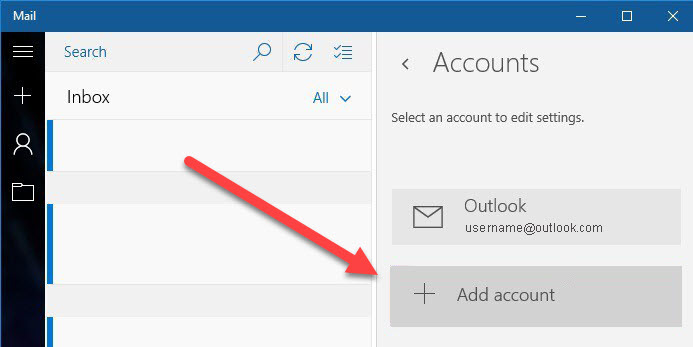
Step 4. Under the Accounts heading, tap ‘+Add account’.
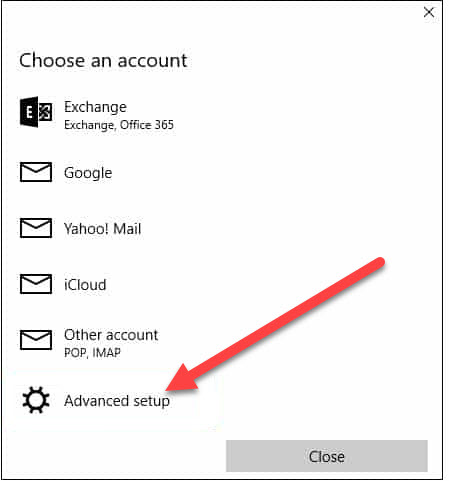
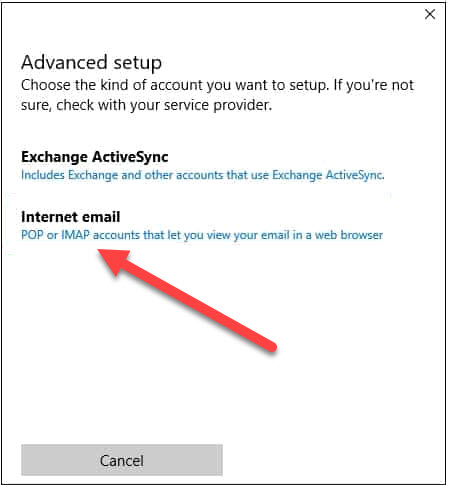
Step 5. Choose Advanced Setup from the options
Step 6. Select ‘Internet Email’ from the list of options
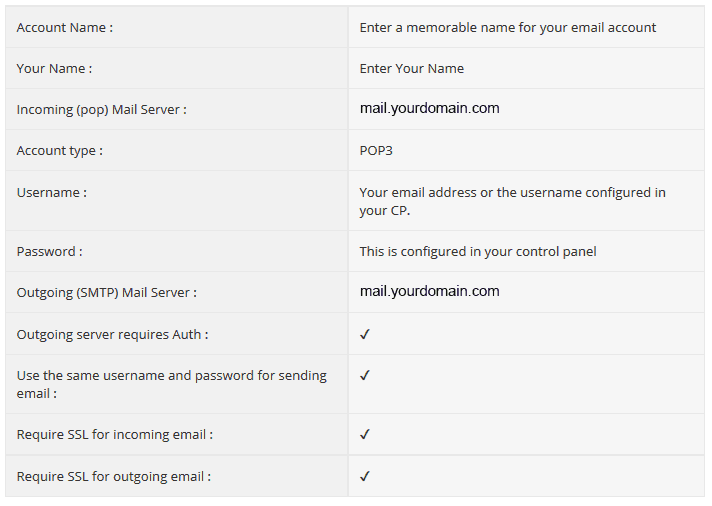
Step 7. Complete the form. and click ‘Sign-In’
Step 8. You will now see a success message, no click the ‘Done’ button
If you are still encountering problems sending mails you may need to change your SMTP Port – info on how to do this can be found by clicking the link below.