Skip to content
01403 801000 info@webdesigninhorsham.co.uk
WhatsApp Webmail Control Panel
Web Design in Horsham
Services

Websites, hosting and search support for growing businesses.

Explore the core services we provide for businesses that need a better website, stronger online visibility and reliable long-term support.

View all services
Recommended AI Local Search Help your business get found in Google, ChatGPT and AI-powered search. Web Design Modern WordPress websites built around your business goals. Website Redesign Refresh an outdated website and turn it into something stronger. WordPress Hosting Fast, secure UK hosting with support from real people. WordPress Care Plans Updates, monitoring and support to keep your site healthy. Business Email Professional email setup for your domain and team. Domain Names Domain registration, management and practical advice. Online Shops Online shops built in WordPress with WooCommerce.
Web Design Website Redesign Portfolio Reviews FAQ’s About Contact
Email Setup Guide

How to Set Up Email in Outlook for Mac

Follow these simple steps to add a business email address to Outlook for Mac. These instructions work for most professional email accounts using IMAP and SMTP.

Set Up Business Email Jump to Email Settings
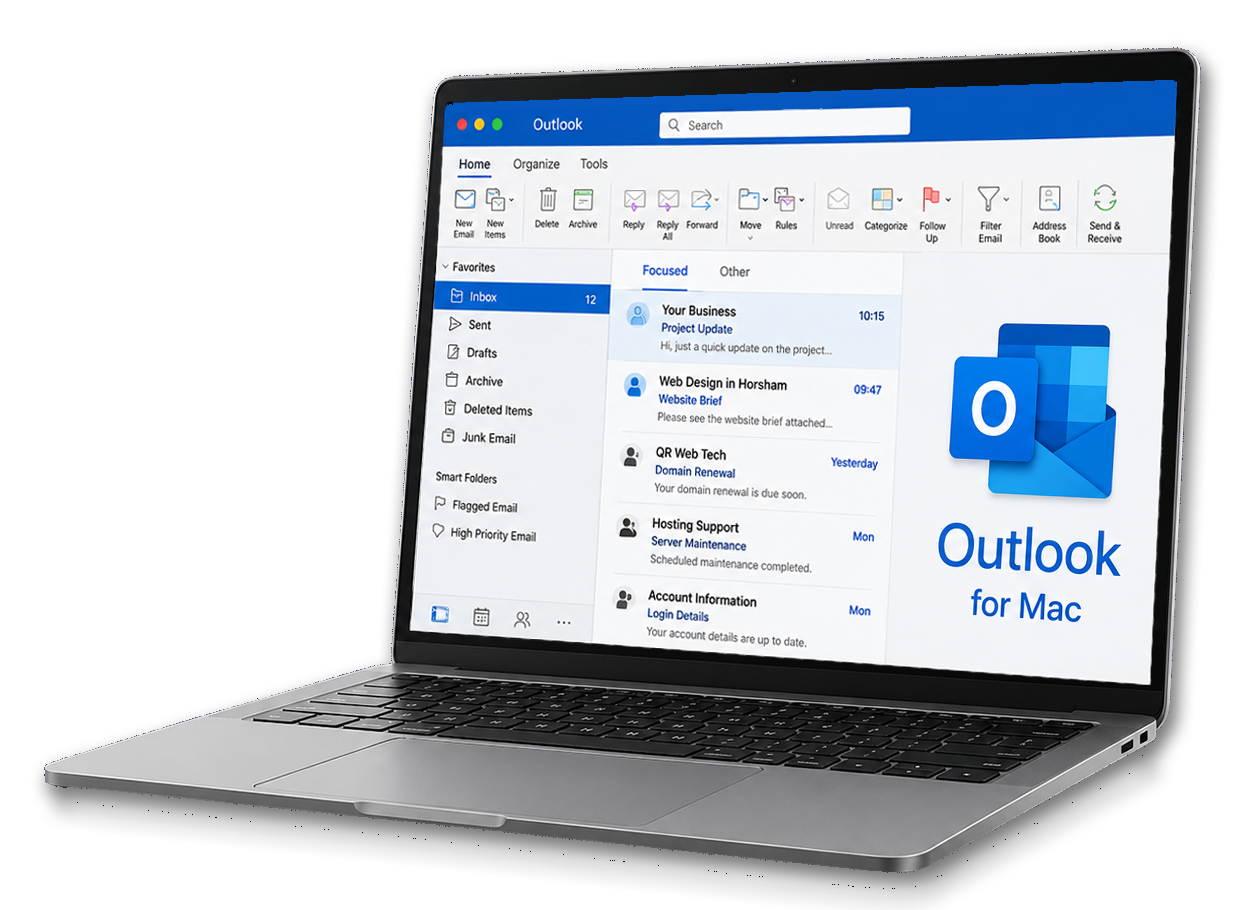
Outlook for Mac email setup

Before you start

To add your business email to Outlook for Mac, you will need a few details from your email provider. In most cases, business email should be set up using IMAP. This keeps your emails synced across Outlook, your phone and webmail.

Outlook for Mac may try to find your settings automatically, but business email accounts often need to be entered manually. The steps below cover the manual IMAP and SMTP setup route.

What you will need

  • Your full email address
  • The password supplied for the mailbox
  • Your incoming mail server
  • Your outgoing mail server
  • SSL and port settings

Email settings you will need

Use the settings supplied by your email provider. The example below shows a typical business email setup using secure IMAP and SMTP.

Email address yourname@example.co.uk
Username Your full email address
Password The mailbox password supplied to you
Incoming server imap.example.co.uk
Incoming type IMAP
Incoming port 993
Outgoing server smtp.example.co.uk
Outgoing port 465
SSL On for both incoming and outgoing mail
Authentication Password authentication required for both incoming and outgoing mail
Important: Outlook may try to guess your settings automatically. If the automatic setup fails, use the manual IMAP and SMTP settings supplied by your email provider.

Step-by-step: set up email in Outlook for Mac

Follow these steps to add your business email account to Outlook on a Mac.

Open Outlook Open Outlook on your Mac. If this is the first account being added, Outlook may open the account setup screen automatically.
Open account settings From the Outlook menu, go to Settings or Preferences, then choose Accounts.
Add a new account Click the plus button or Add Account to start adding your business email address.
Enter your email address Enter your full business email address. If Outlook asks to continue automatically, look for an option to set up the account manually if needed.
Choose IMAP Select IMAP as the account type. IMAP is normally best for business email because it keeps your mailbox synced across devices.
Enter the incoming mail settings Add your incoming IMAP server, port 993 and SSL/TLS encryption. Your username is normally your full email address.
Enter the outgoing mail settings Add your outgoing SMTP server, port 465 and SSL/TLS encryption. Make sure outgoing authentication is enabled.
Enter your password Enter the mailbox password supplied by your email provider, then continue.
Test sending and receiving Once Outlook finishes setup, send a test email to another address, then reply to it. This checks that both sending and receiving are working properly.

Advanced settings to check

If Outlook accepts the account but email does not send or receive correctly, check these advanced settings.

Incoming mail

  • Account type: IMAP
  • Port: 993
  • Encryption: SSL/TLS
  • Authentication: Password
  • Username: full email address

Outgoing mail

  • Server type: SMTP
  • Port: 465
  • Encryption: SSL/TLS
  • Authentication: Password
  • Username: full email address

Troubleshooting

If the account does not work straight away, the problem is usually one of four things: the password, the server name, the port number, or the outgoing mail authentication.

If receiving does not work

  • Check the incoming server name.
  • Check the IMAP port is set to 993.
  • Check SSL/TLS encryption is selected.
  • Re-enter the mailbox password carefully.

If sending does not work

  • Check the outgoing SMTP server name.
  • Check the SMTP port is set to 465.
  • Check SSL/TLS encryption is selected.
  • Make sure outgoing authentication is enabled.
Sending problems in Outlook are often caused by outgoing authentication being missing or incorrect. Your outgoing server normally needs the same username and password as your incoming server.

Need reliable business email?

If you are setting up a new business email address, or you are tired of email problems on your phone, tablet or computer, Web Design in Horsham can help.

Web Design in Horsham is part of QR Web Tech, providing professional email hosting for small businesses.

£5.99 per month

Includes up to 10 mailboxes, each with 10GB of storage.

Set Up Business Email

What’s included?

  • Up to 10 business mailboxes
  • 10GB storage per mailbox
  • Domain-based email addresses
  • Help connecting email to your devices
  • Professional email for your business

Ready to grow your business online?

Let’s build you a website that works as hard as you do.

Get Your Free Quote Call 01403 801000
  • ✓ No obligation quote
  • ✓ Friendly, local support
  • ✓ Get started in days, not weeks
Web Design in Horsham

Web Design in Horsham provides professional WordPress web design, hosting, care plans, business email, domain names, online shops and AI local search support for local businesses.

  • ✓ 17+ years helping local businesses
  • ✓ 116 five-star Google reviews
  • ✓ 260+ websites built and managed

Services

  • All Services
  • Web Design
  • Website Redesign
  • AI Local Search
  • WordPress Hosting
  • WordPress Care Plans
  • Business Email
  • Domain Names
  • Online Shops

Company

  • Portfolio
  • FAQs
  • Where We Work
  • Reviews
  • About
  • Pricing
  • Contact
  • Email Setup Guides
  • QRWEBTECH LTD

Contact

Phone 01403 801000
Email info@webdesigninhorsham.co.uk
Client Links WhatsApp Webmail Control Panel
Get a Free Quote
© 2026 Web Design in Horsham. All rights reserved.
Web Design in Horsham is part of QRWEBTECH LTD. Company number 16733516.
Privacy Policy Terms & Conditions Contact