How to amend your SMTP port in Outlook 2013

Some Internet Service Providers (ISPs) will routinely block sending mail on the default port 25. To remedy this follow the simple steps detailed below. These will take you through the process of changing your port to 587 which will allow mail to be sent.

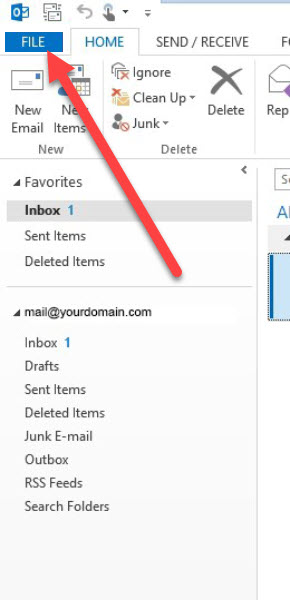
Step 1. Open Microsoft Outlook 2013 then select File

How to amend your SMTP port in Outlook 2013 step 1

Step 2. Select Accounts and Social Network Settings, then ‘Account Settings’

Screenshot of the Account Information page in Microsoft Outlook. Two dropdown options for "Account Settings" are highlighted with red arrows: "Account Settings" for changing account or connection settings, and "Social Network Accounts" for connecting to social networks. Excellent web design in Horsham enhances user experience.

Step 3. Find and highlight the specific account you want to change the outgoing port for then click Change

Screenshot of an email account settings window in a web design project for a business in Horsham. It shows an email account listed as "mail.yourdomain.com" under the E-mail tab. Two red arrows point to this email account. Additional tabs include Data Files, RSS Feeds, Internet Calendars, Published Calendars, and Address Books.

Step 4. Now click on More Settings

Screenshot of the "Change Account" settings window for email configuration, popular in web design in Horsham. Fields include "Your Name," "Email Address," "Incoming mail server," "Outgoing mail server (SMTP)," "User Name," and "Password." A red arrow points to the "More Settings..." button.

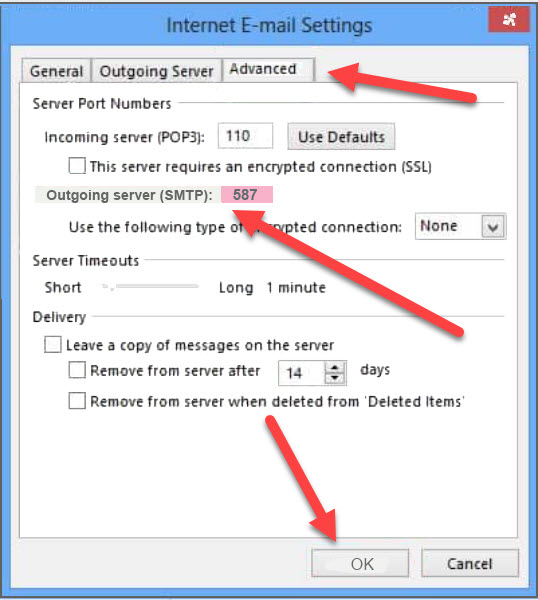
Step 5. Select the Advanced Tab at the top of the task pane. Change the Outgoing Server Port to 587 – Now click OK

Screenshot of the advanced tab in Internet E-Mail Settings. Red arrows indicate areas of interest, such as outgoing server (SMTP) port set to 587 and the "OK" button in the lower right. Options like "Leave a copy on the server" and server timeouts are visible, crucial for web design troubleshooting in Horsham.

Step 6. Click Next.

Screenshot of the "Change Account" settings window for email configuration. It includes fields for entering 'Your Name', 'Email Address', 'Incoming mail server', 'Outgoing mail server (SMTP)', 'User Name', and 'Password'. A red arrow points to the "Next >" button, a smart touch inspired by web design in Horsham.

Step 7. You see that Outlook 2013 will test your settings. When the check is complete, click Close

Dialog box of "Test Account Settings" showing a successful completion message: "Congratulations! All tests completed successfully. Click Close to continue." Below are two tasks, both marked as Completed. A red arrow points to the "Close" button on the right, seamlessly integrating web design in Horsham.

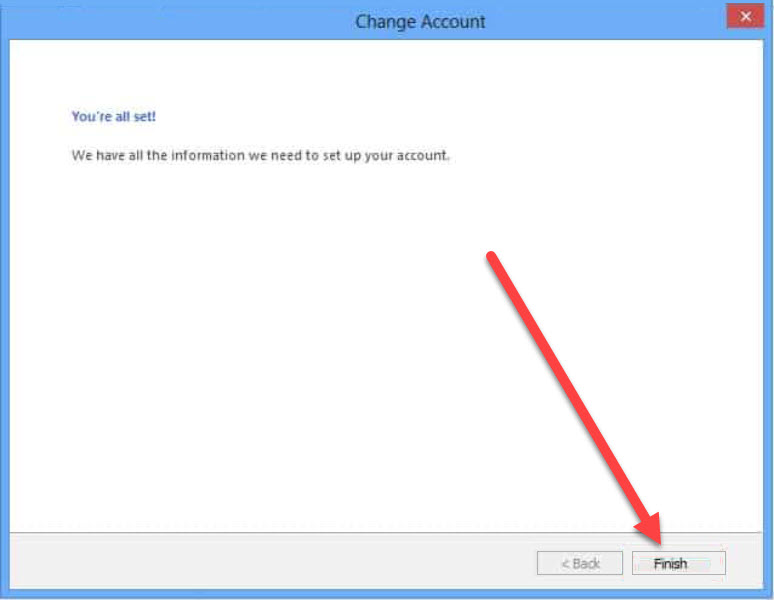
Step 8. Click Finish at the bottom of the panel

A computer screen displaying a "Change Account" setup confirmation message with the text, "You're all set! We have all the information we need to set up your account." A red arrow is pointing to the "Finish" button at the bottom right corner of the window. The sleek layout is a testament to expert web design in Horsham.

Step 9. Now click Close

Screenshot of an email account settings window in Microsoft Outlook. Tabs include E-mail, Data Files, RSS Feeds, SharePoint Lists, Internet Calendars, and Published Calendars. A red arrow points to the "Close" button at the bottom right corner of the window. Perfect for professionals involved in web design in Horsham.

Once completed, you should now be able to send mail via our outgoing mail server without being blocked by your Internet Service Provider.