How to amend your SMTP port in Microsoft Windows 8 Mail

Some Internet Service Providers (ISPs) will routinely block sending mail on the default port 25. To remedy this, follow the simple steps listed below. These will take you through the way to change your port to 587 which will allow mail to be sent.

Step 1. Open the Mail app and use your finger to swipe from the right-hand bezel of the display towards the centre. This will bring up the Charms bar. Now tap Settings at the bottom.

A computer screen displays a portion of the Windows 8 interface. The right-side Charms bar shows options: Search, Share, Start, Devices, and Settings, with a red arrow pointing to the Settings icon. The bottom-left corner shows the time as 18:53 on Friday, 26 February—a crucial detail for web design in Horsham projects.

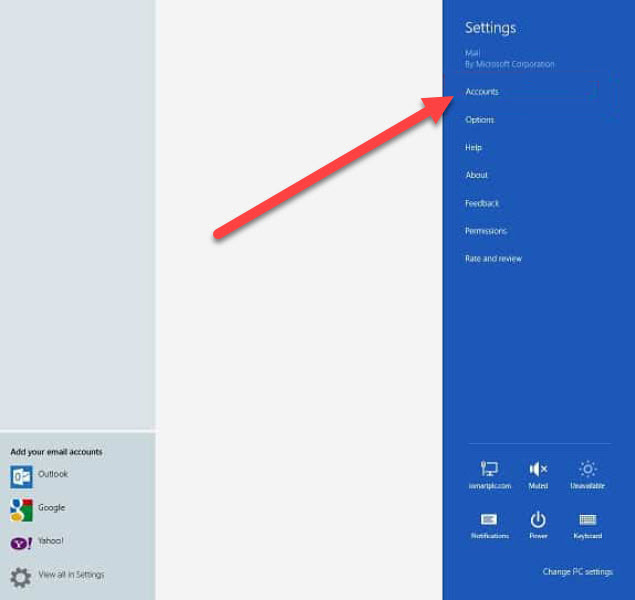
Step 2. Tap Accounts which is underneath Settings

A computer screen displays a mail settings menu. On the left, multiple email accounts such as Outlook, Google, Yahoo, and iCloud are listed. On the right, the settings pane is open with a red arrow pointing to the "Accounts" option, showcasing a sleek web design in Horsham.

Step 3. Now select the account you want to amend the port for. This is underneath Settings

A screen displays an email account management interface. A red arrow points to a box labeled "Your Support Services" with a black envelope icon on the left. Below is a link labeled "Add an account" in blue text. The header reads "Accounts" with a back arrow and envelope icon, showcasing web design in Horsham at its finest.

Step 4. Scroll down the pane until you see the Server Settings. Now update the outgoing server port to 587.

A screenshot displaying email configuration settings in a form shows fields such as email address, password, server names, and ports. The "Outgoing email server" field is highlighted with a red arrow pointing to "mail.yourdomain.com" and port "587", showcasing web design in Horsham.

Step 5. Select and click the Back button in the settings tab to save the changes

A red arrow points towards a circular icon with a left-facing arrow, indicating a "back" or "return" function on a blue background. To the right, part of an email address ending in "yoursupportse..." and an envelope icon are visible. This web design in Horsham layout enhances user navigation effectively.