How to set up Email in Android (POP)

Step 1. Find and select the ‘Mail’ icon from the home or applications screen as shown below

Icon of an envelope with a visible corner of a letter sticking out, labeled "Mail." The background, inspired by web design in Horsham, features a dark textured pattern.

Step 2. Select account type – Either (POP3 /IMAP)
(Please note: If you already have a mail account configured, click ‘Options’, then ‘Accounts’ to create a new account.)

A dropdown menu titled "Choose a mail provider" is displayed, with options "Exchange ActiveSync" and "Other (POP3/IMAP)." A red arrow highlights the "Other (POP3/IMAP)" option, showcasing web design in Horsham's user-friendly interface.

Step 3. Complete the ‘Username’ and ‘Password’ fields with your details then select ‘Next’

A table instructs to enter your email address or username and associated password. Below the table are fields labeled 'your.name@domain.com' for the username and a hidden password field, each highlighted by red arrows. A "Show password" checkbox is partially shown, reflecting meticulous web design in Horsham.

Step 4. Select ‘POP’ from the list of options

A computer screen shows the "Add email account" menu with three options: "POP3 account," "IMAP account," and "Exchange account." A red arrow points to the "POP3 account" button, indicating it is the selected option. This user-friendly interface showcases stellar web design in Horsham.

Step 5. Enter requested incoming ‘POP’ settings and then click ‘Next’

A table displaying email configuration settings tailored for web design in Horsham. It includes fields for Username, Password, POP Server (pop.yourdomain.co.uk), Port (110), Security Type (None), and an optional setting for deleting mail from the server.
Screenshot of an email setup screen titled "Incoming server settings," designed with a touch of web design in Horsham, featuring red arrows pointing to fields labeled "User name," "Password," "IMAP Server," "Port," and "Security type." A dropdown menu for "Delete email from server" and a "Next" button are at the bottom.

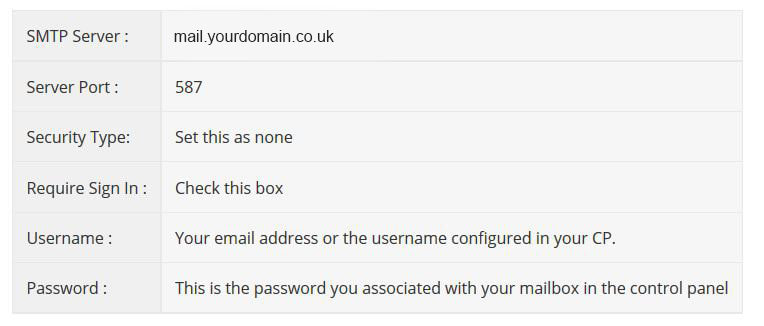
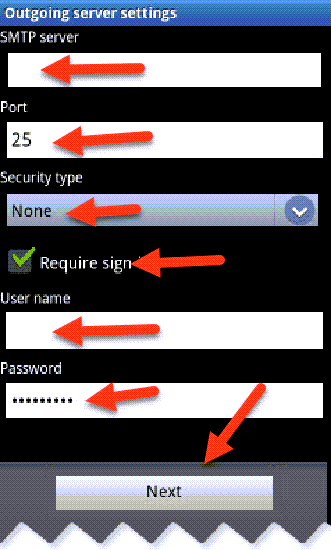
Step 6. Enter requested ‘Outgoing SMTP’ settings then click ‘Next’

How to set up Email in Android (POP)
A screenshot of an email outgoing server settings menu, blending web design in Horsham with technical setup. Red arrows point to fields for SMTP server, port (set to 25), security type (set to None), a checkbox for "Require sign-in," and fields for user name and password. A “Next” button is at the bottom.

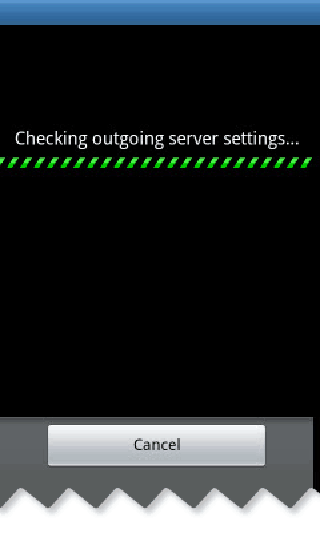
Step 7. Your Android device will now automatically check your settings with the server

A phone screen displaying a message 'Checking outgoing server settings...' with a loading progress bar, designed with sleek web design in Horsham. There is a 'Cancel' button at the bottom.

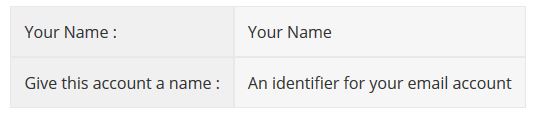
Step 8. Enter ‘Your Name’ and an ‘Account Name’ then click ‘Done’

A table with two rows and two columns. The first row has "Your Name:" on the left and "Your Name" on the right. The second row has "Give this account a name:" on the left and "An identifier for your email account" on the right. Perfect for streamlined web design in Horsham.
Email setup screen displaying fields for "Email Account" and "Your name (Displayed on outgoing messages)" with a "Done" button at the bottom. A red arrow points to the "Done" button, indicating it's the next step to complete the setup process. Streamlined web design in Horsham ensures ease of use.