
Follow these simple steps to add a business email address to your Android tablet using the Gmail app. These instructions work for most professional email accounts, although some menu names may vary slightly depending on your tablet brand and Android version.
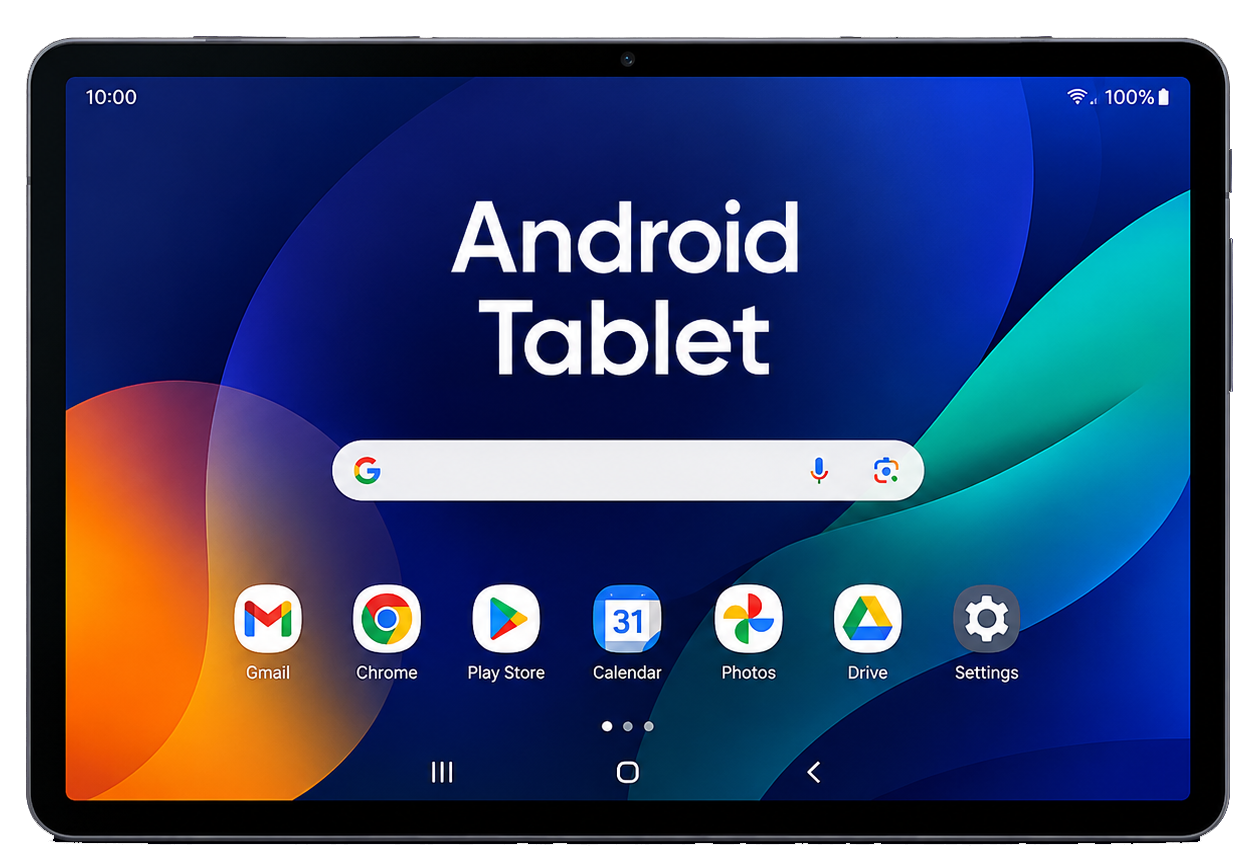
To add your email account to an Android tablet, you will need a few details from your email provider. In most cases, business email should be set up using IMAP. This keeps your emails synced across your tablet, phone and webmail.
Android tablets may look slightly different depending on the manufacturer and Android version. These steps follow the most common route using the Gmail app for a business email account.
Use the settings supplied by your email provider. The example below shows a typical business email setup using secure IMAP and SMTP.
| Email address | yourname@example.co.uk |
|---|---|
| Username | Your full email address |
| Password | The mailbox password supplied to you |
| Incoming server | imap.example.co.uk |
| Incoming type | IMAP |
| Incoming port | 993 |
| Outgoing server | smtp.example.co.uk |
| Outgoing port | 465 |
| SSL | On for both incoming and outgoing mail |
| Authentication | Password authentication required for both incoming and outgoing mail |
Follow these steps to add your business email account to your Android tablet using the Gmail app.
If the Android tablet accepts the account but email does not send or receive correctly, check these advanced settings.
If the account does not work straight away, the problem is usually one of four things: the password, the server name, the port number, or the outgoing mail authentication.
If you are setting up a new business email address, or you are tired of email problems on your phone, tablet or computer, Web Design in Horsham can help.
Web Design in Horsham is part of QR Web Tech, providing professional email hosting for small businesses.
Includes up to 10 mailboxes, each with 10GB of storage.
Set Up Business Email