How to set up email in Windows 10 (IMAP)

Step 1. On the Home/Start screen, tap the ‘Mail’ panel (Where you find it will depend on the layout of your Start screen).

How to set up email in Windows 10 (IMAP)

Step 2. In the Mail app, select the ‘Settings’ icon by clicking on it.

A screenshot of an email client interface showing the inbox and a selected email. The email preview includes a large magenta box and text. A red arrow points to the gear icon at the bottom left, indicating the settings menu—a typical example of web design in Horsham.

Step 3. Under the ‘Settings’ heading, select Accounts from the dropdown menu.

A screenshot of an email application's settings page. The left panel shows the inbox with three icons. The right panel displays various settings options such as Accounts, Personalisation, Reading, Options, Help, Trust Centre, and Feedback. Designed with sleek web design in Horsham principles, Accounts is highlighted.

Step 4. Under ‘Accounts’, select ‘Add account’ from the list of choices.

Screenshot of an email application showing the Accounts section, designed with modern web design in Horsham. An arrow points to the "Add account" button located below an Outlook account example. The interface includes an inbox and search bar on the left, with the account settings on the right.

Step 5. Choose ‘Advanced Setup’ from the dropdown menu

How to set up email in Windows 10 (IMAP)

Step 6. Now select ‘Internet Email’

How to set up email in Windows 10 (IMAP)

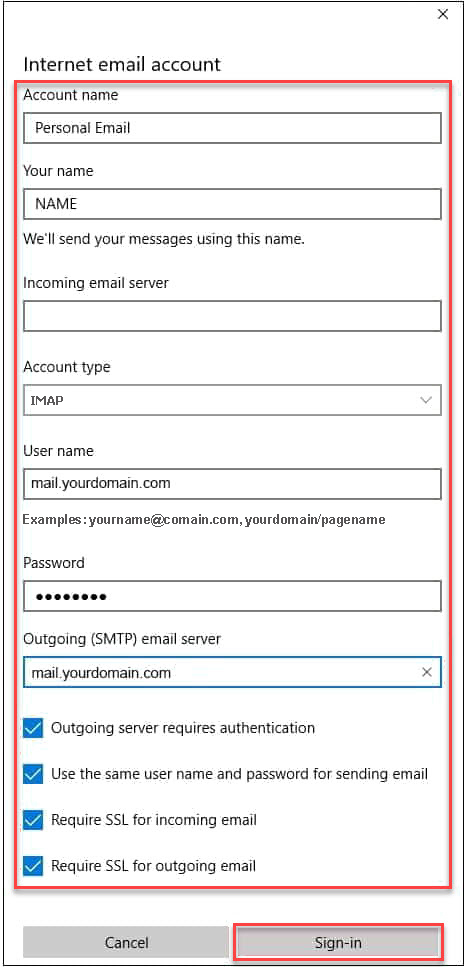
Step 7. Complete the form, adding the relevant information where required. Then click ‘Sign-In’

How to set up email in Windows 10 (IMAP)
A screenshot of the "Internet email account" settings window, a common element in web design in Horsham. Fields include "Account name," "Your name," "Incoming email server," (IMAP), "E-mail address," "Password," and "Outgoing (SMTP) email server." Server authentication and SSL usage options are checked. At the bottom are “Cancel” and “Sign-in” buttons

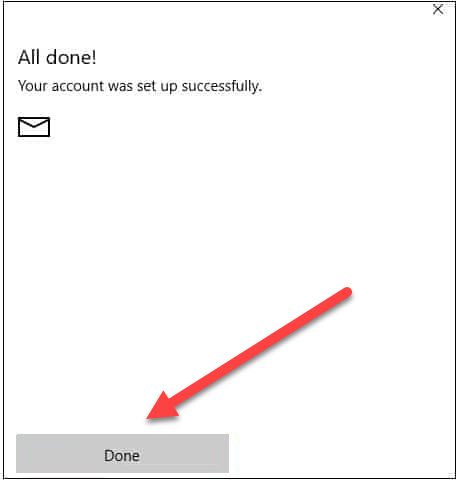
Step 8. You will now be presented with a success message. Click ‘Done’

How to set up email in Windows 10 (IMAP)

If you are still encountering problems sending mails you may need to change your SMTP Port – info on how to do this can be found on the link below.